Before you begin
You will need:
- A mobile phone number for Telegram account creation.
- Access to the Telegram app or Telegram Web.
- Permission to add a bot to the target private chat, group, supergroup, or channel.
- Hermes admin/settings access.
- Developer accounts for any LLM providers you want Hermes to use.
1. Create a Telegram account from zero
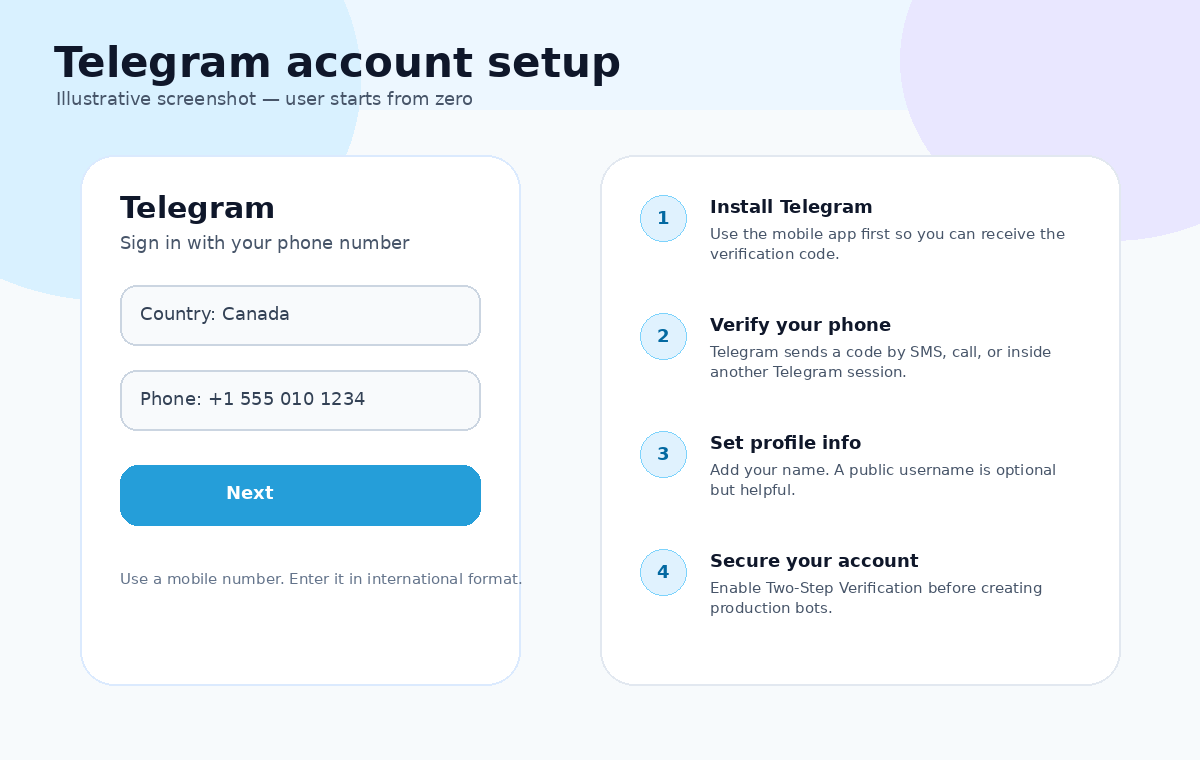
Illustrative screenshot: account signup with a mobile phone number.
Install Telegram
Install Telegram on iOS or Android first. Desktop and web sessions are useful later, but the initial account setup normally starts with a mobile number.
Enter your phone number
Use international format, for example +1 555 010 1234. Telegram may reject landline, VoIP, or unsupported numbers.
Verify the login code
Telegram sends a verification code by SMS, call, or to another active Telegram session. Enter the code to finish signing in.
Secure the account
Set your display name, optionally create a username, and enable Two-Step Verification before creating production bots.
2. Create a Telegram bot token with BotFather
Telegram bots are created through the verified BotFather bot. BotFather generates the HTTP API token that Hermes will use to send messages.
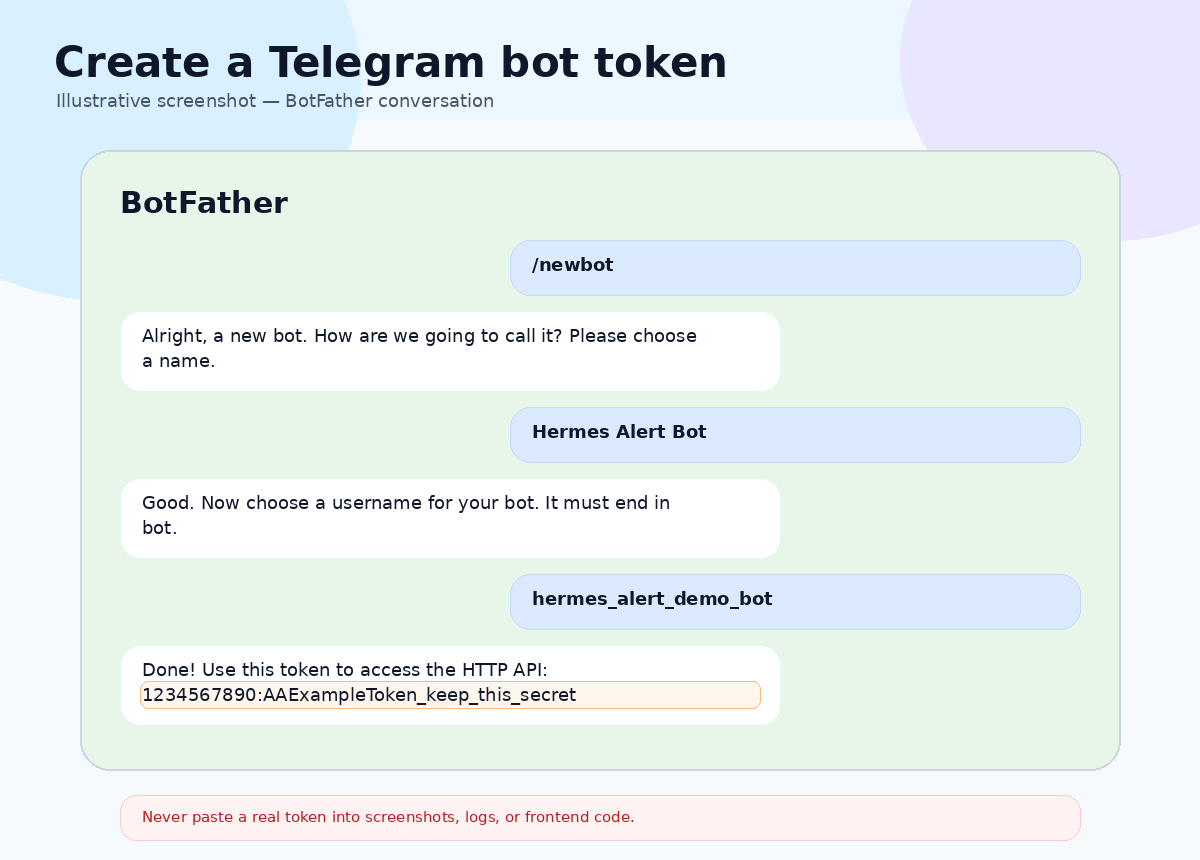
Illustrative screenshot: BotFather returns a redacted bot token.
Steps
- Open Telegram and search for @BotFather.
- Start the conversation and send
/newbot. - Enter a display name, for example
Hermes Alert Bot. - Enter a unique username ending in
bot, for examplehermes_alert_demo_bot. - Copy the generated token. It looks similar to
1234567890:AA.... - Store the token in a server-side secret store, environment variable, or Hermes settings. Do not expose it in client-side code.
Confirm the token works
curl "https://api.telegram.org/bot<TELEGRAM_BOT_TOKEN>/getMe"A valid token returns "ok": true and a bot profile containing the bot username.
3. Get the target Telegram chat ID
The chat_id is the unique identifier of the private chat, group, supergroup, or channel where Hermes should send notifications. Private chat IDs are usually positive numbers. Group, supergroup, and channel IDs are usually negative numbers; supergroups and channels often begin with -100.
Option A — Private chat ID
- Open your bot in Telegram.
- Tap Start or send
/start. - Send a normal message such as
hello. - Call
getUpdatesand readmessage.chat.id.
curl "https://api.telegram.org/bot<TELEGRAM_BOT_TOKEN>/getUpdates?timeout=20"Option B — Group or supergroup chat ID
- Add the bot to the group or supergroup.
- Send a command addressed to the bot, for example
/start@your_bot_username. - Call
getUpdatesand readmessage.chat.id.
/start@your_bot_username for the first test.Option C — Channel chat ID
- Add the bot as a channel administrator.
- Publish a new channel post after the bot has been added.
- Call
getUpdatesand readchannel_post.chat.id.
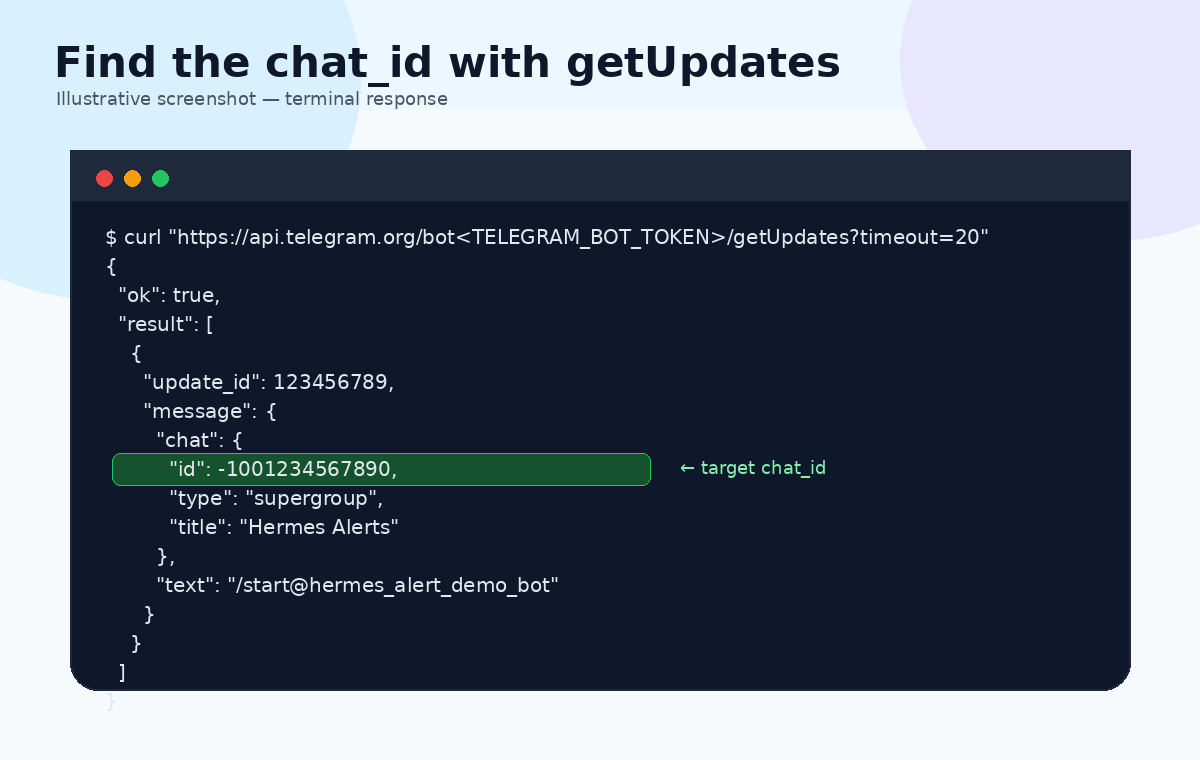
Illustrative screenshot: read the highlighted chat.id value from the API response.
Option D — Public group or channel username
If the target has a public username, you can often use @username directly in Telegram Bot API calls. To convert it to a numeric ID, call getChat:
curl "https://api.telegram.org/bot<TELEGRAM_BOT_TOKEN>/getChat?chat_id=@your_public_group_or_channel"Send a final test message
curl -X POST "https://api.telegram.org/bot<TELEGRAM_BOT_TOKEN>/sendMessage" \
  -d "chat_id=<TARGET_CHAT_ID>" \
  -d "text=Hermes Telegram test message"
4. Configure Telegram notifications in Hermes
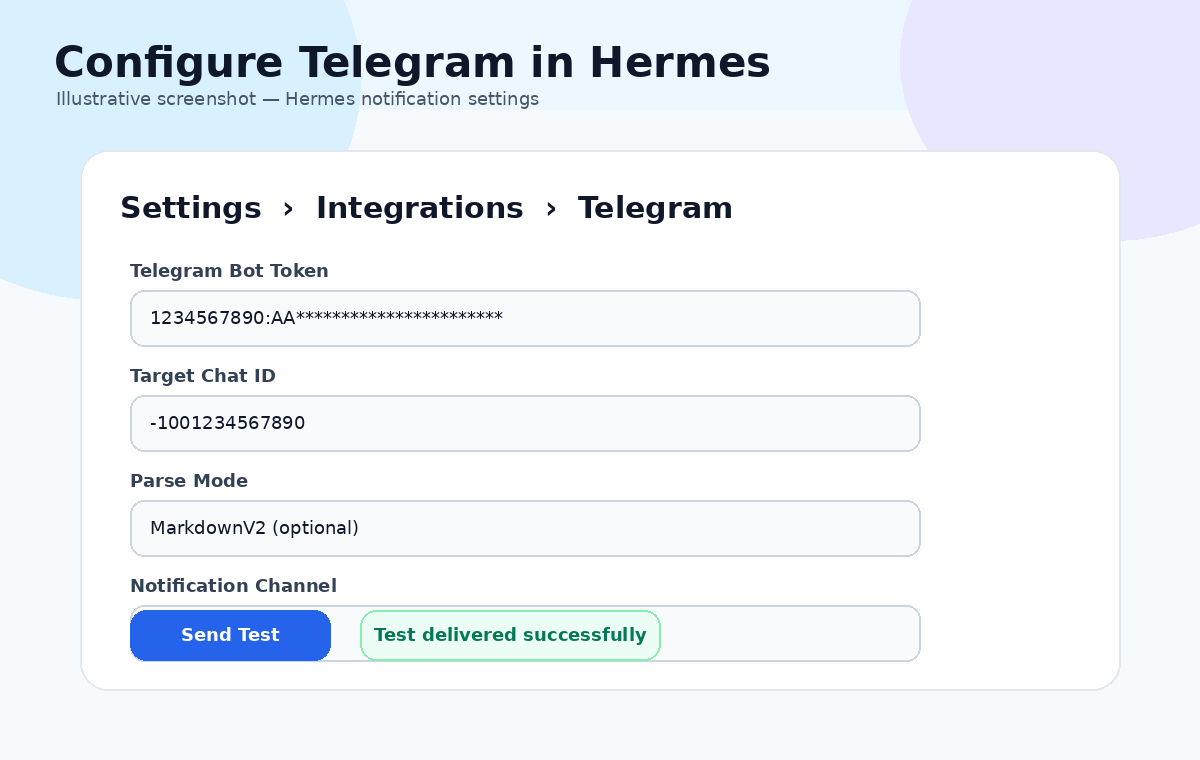
Illustrative screenshot: Telegram integration fields in Hermes.
| Telegram Bot Token | Paste the token created by BotFather. Example format: 1234567890:AA... |
|---|---|
| Target Chat ID | Paste the numeric chat.id, or use @public_username if your Hermes build supports Telegram usernames. |
| Parse Mode | Optional. Use MarkdownV2 or HTML only if Hermes escapes message text correctly. |
| Enabled | Turn the integration on, save, and send a test notification. |
5. Configure LLM provider API keys, URLs, and models
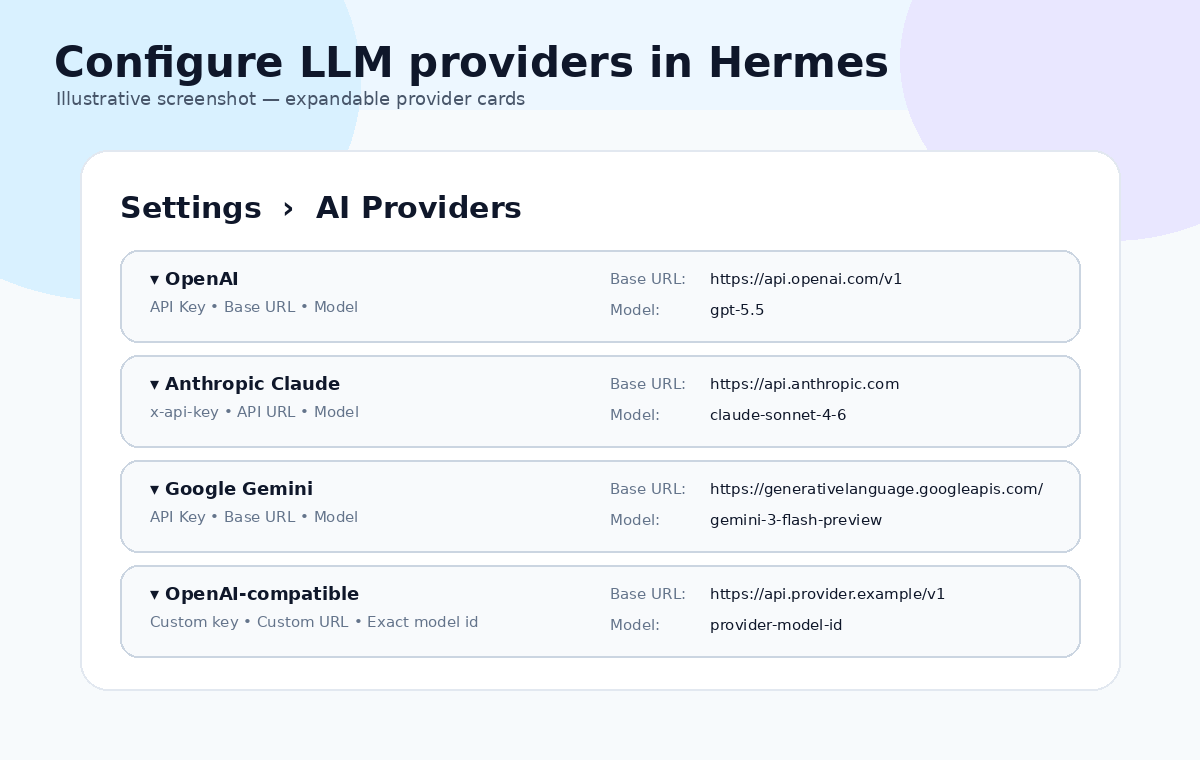
Illustrative screenshot: Hermes LLM provider cards can expand and collapse.
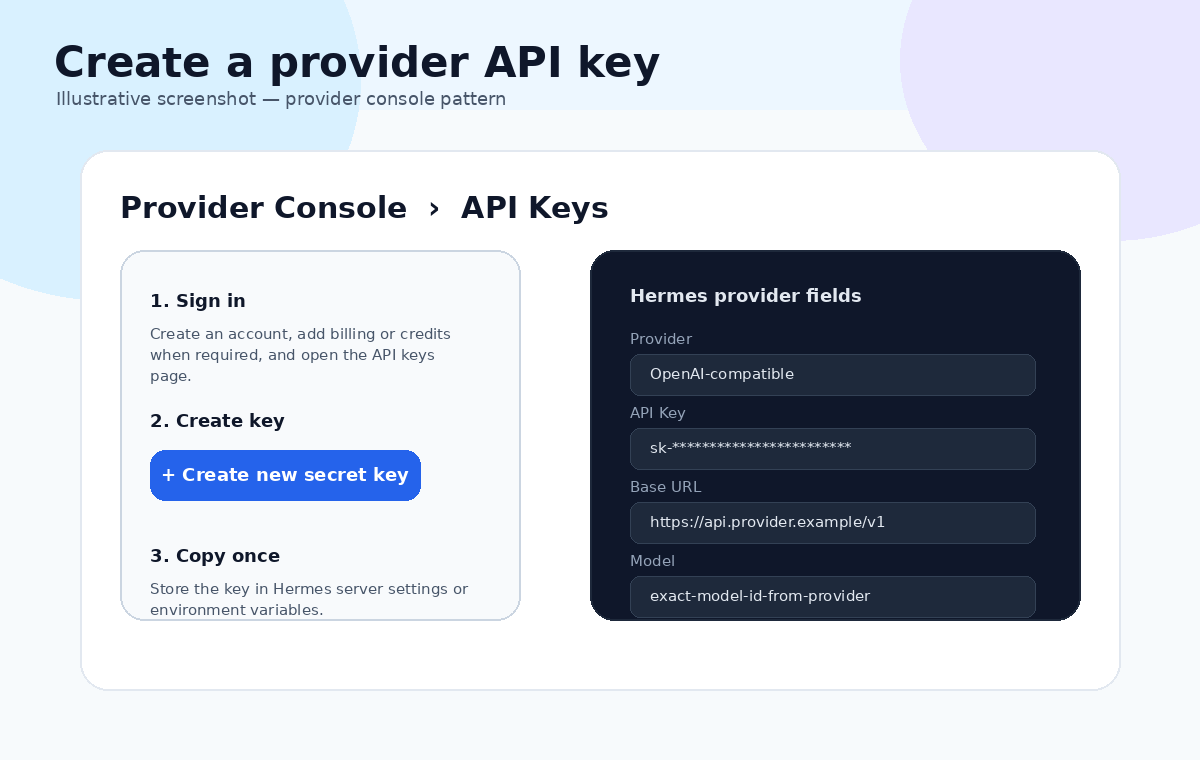
Illustrative screenshot: most providers follow the same pattern — create key, copy base URL, copy exact model ID.
OpenAI OpenAI API
What to enter in Hermes
| API key | Create a secret key in the OpenAI Platform project API keys area. Store it server-side only. |
|---|---|
| Base URL | https://api.openai.com/v1 |
| Model | Examples: gpt-5.5 for highest quality; gpt-5.4-mini or gpt-5.4 for lower latency/cost. Always copy the exact model ID shown in your OpenAI account because availability can vary by account and region. |
| Suggested env var | OPENAI_API_KEY |
How to get it
- Create or sign in to your OpenAI Platform account.
- Open the project you want Hermes to bill against.
- Create a new secret key and copy it once.
- In Hermes, choose the OpenAI provider or OpenAI-compatible mode, then paste the key, base URL, and model ID.
curl https://api.openai.com/v1/models \
  -H "Authorization: Bearer <OPENAI_API_KEY>"
Azure OpenAI / Microsoft Foundry Azure deployment
What to enter in Hermes
| API key | Use the key from your Azure OpenAI / Azure AI Foundry resource, or use Entra ID if your Hermes deployment supports managed identity. |
|---|---|
| Base URL | https://<your-resource-name>.openai.azure.com |
| Model | In many Azure setups Hermes must use the deployment name, not the raw model name. Example deployment names: production-chat, gpt-5-prod, gpt-4o-prod. The exact deployed model is selected in Azure. |
| Suggested env var | AZURE_OPENAI_API_KEY |
How to get it
- Create an Azure OpenAI / Azure AI Foundry resource.
- Deploy a model in the Azure AI Foundry portal.
- Copy the resource endpoint and key from the resource page.
- In Hermes, set Base URL to the resource endpoint, API key to the Azure key, and Model to the deployment name.
- Set the API version field if your Hermes build exposes one.
curl "https://<resource>.openai.azure.com/openai/deployments/<deployment>/chat/completions?api-version=<api-version>" \
  -H "api-key: <AZURE_OPENAI_API_KEY>" \
  -H "Content-Type: application/json"
Anthropic Claude Claude API
What to enter in Hermes
| API key | Create a key in the Claude Console account settings / API keys area. |
|---|---|
| Base URL | https://api.anthropic.com |
| Model | Examples: claude-opus-4-7, claude-sonnet-4-6, claude-haiku-4-5-20251001. Use Sonnet as a strong default and Haiku for lower-cost, low-latency work. |
| Suggested env var | ANTHROPIC_API_KEY |
How to get it
- Create or sign in to a Claude Console account.
- Generate an API key.
- In Hermes, choose Anthropic or OpenAI-compatible/Anthropic-compatible mode depending on your build.
- Paste the API key, base URL, and the exact model alias or snapshot ID.
curl https://api.anthropic.com/v1/messages \
  -H "x-api-key: <ANTHROPIC_API_KEY>" \
  -H "anthropic-version: 2023-06-01" \
  -H "content-type: application/json" \
  -d '{"model":"claude-sonnet-4-6","max_tokens":64,"messages":[{"role":"user","content":"Say hello"}]}'
Google Gemini Gemini API
What to enter in Hermes
| API key | Create a Gemini API key in Google AI Studio. The key is linked to a Google Cloud project. |
|---|---|
| Base URL | https://generativelanguage.googleapis.com/v1beta |
| Model | Examples shown in current Gemini docs include gemini-3-flash-preview. In the Gemini model list, copy the exact model ID available to your project, such as a Gemini Pro, Flash, or Flash-Lite model. |
| Suggested env var | GEMINI_API_KEY |
How to get it
- Sign in to Google AI Studio.
- Open API keys and create or select a key.
- Enable billing / project access if Google prompts you.
- In Hermes, use the Gemini provider if available. If Hermes uses an OpenAI-compatible adapter, follow the adapter's exact base URL requirement.
curl "https://generativelanguage.googleapis.com/v1beta/models/gemini-3-flash-preview:generateContent" \
  -H "x-goog-api-key: <GEMINI_API_KEY>" \
  -H "Content-Type: application/json" \
  -d '{"contents":[{"parts":[{"text":"Say hello"}]}]}'
Groq OpenAI-compatible
What to enter in Hermes
| API key | Create a key in the Groq Console API keys page. |
|---|---|
| Base URL | https://api.groq.com/openai/v1 |
| Model | Examples: llama-3.3-70b-versatile, llama-3.1-8b-instant. Groq uses an OpenAI-compatible API shape for chat completions. |
| Suggested env var | GROQ_API_KEY |
How to get it
- Create or sign in to a Groq account.
- Create an API key.
- In Hermes, choose OpenAI-compatible provider mode.
- Set Base URL to Groq's OpenAI-compatible URL and paste the Groq key.
curl https://api.groq.com/openai/v1/chat/completions \
  -H "Authorization: Bearer <GROQ_API_KEY>" \
  -H "Content-Type: application/json" \
  -d '{"model":"llama-3.3-70b-versatile","messages":[{"role":"user","content":"Say hello"}]}'
Mistral AI Mistral API
What to enter in Hermes
| API key | Create an API key in La Plateforme / Mistral Console. Keys are scoped to your workspace. |
|---|---|
| Base URL | https://api.mistral.ai/v1 |
| Model | Examples commonly used in Mistral integrations include mistral-large-latest and ministral-8b-latest. Copy the exact active model name from Mistral's Models page or API documentation. |
| Suggested env var | MISTRAL_API_KEY |
How to get it
- Sign in to Mistral's developer platform.
- Activate API access and create an API key.
- Open the Models page and copy the model ID you want Hermes to use.
- In Hermes, use Mistral provider mode or OpenAI-compatible mode if your Hermes build documents that option.
curl https://api.mistral.ai/v1/models \
  -H "Authorization: Bearer <MISTRAL_API_KEY>"
DeepSeek OpenAI / Anthropic compatible
What to enter in Hermes
| API key | Create an API key at the DeepSeek platform API keys page. Requests use Bearer authentication. |
|---|---|
| Base URL | OpenAI format: https://api.deepseek.com • Anthropic format: https://api.deepseek.com/anthropic |
| Model | Current DeepSeek docs list model names such as deepseek-v4-flash and deepseek-v4-pro. Use /models to confirm what your key can access. |
| Suggested env var | DEEPSEEK_API_KEY |
How to get it
- Sign in to the DeepSeek platform.
- Create an API key.
- In Hermes, choose the compatible provider mode: OpenAI-compatible or Anthropic-compatible.
- Paste the matching base URL and model ID.
curl https://api.deepseek.com/models \
  -H "Authorization: Bearer <DEEPSEEK_API_KEY>"
xAI Grok OpenAI-compatible
What to enter in Hermes
| API key | Create an API key in the xAI Console. |
|---|---|
| Base URL | https://api.x.ai/v1 |
| Model | Example: grok-4.3. xAI documents OpenAI-compatible and Anthropic-compatible usage, so Hermes usually connects through OpenAI-compatible mode. |
| Suggested env var | XAI_API_KEY |
How to get it
- Create or sign in to an xAI Console account.
- Create an API key.
- Open the Models page and copy the exact Grok model ID.
- In Hermes, choose OpenAI-compatible mode, then set Base URL, API key, and model.
curl https://api.x.ai/v1/models \
  -H "Authorization: Bearer <XAI_API_KEY>"
OpenRouter Model router
What to enter in Hermes
| API key | Create an API key in OpenRouter. OpenRouter uses one API key and a single OpenAI-style endpoint for many upstream providers. |
|---|---|
| Base URL | https://openrouter.ai/api/v1 |
| Model | Use the Models API or model directory to copy the exact provider/model slug, for example provider-name/model-name. Availability and pricing vary by route. |
| Suggested env var | OPENROUTER_API_KEY |
How to get it
- Sign in to OpenRouter.
- Create an API key and add credits if required.
- Choose a model from the OpenRouter model directory.
- In Hermes, use OpenAI-compatible mode, paste the OpenRouter key, base URL, and exact model slug.
curl https://openrouter.ai/api/v1/models \
  -H "Authorization: Bearer <OPENROUTER_API_KEY>"
Ollama local models Local / self-hosted
What to enter in Hermes
| API key | Usually no real API key is required. Some OpenAI-compatible clients expect any placeholder value, such as ollama. |
|---|---|
| Base URL | Native: http://localhost:11434 • OpenAI-compatible: http://localhost:11434/v1 |
| Model | Examples depend on what is installed locally. Run ollama list after pulling a model such as llama3.1. |
| Suggested env var | OLLAMA_API_KEY |
How to get it
- Install Ollama on the same machine or reachable host.
- Pull a model, for example: ollama pull llama3.1.
- Confirm the model with: ollama list.
- In Hermes, use local/Ollama mode or OpenAI-compatible mode with the /v1 URL.
curl http://localhost:11434/v1/models \
  -H "Authorization: Bearer ollama"
Custom OpenAI-compatible endpoint Generic adapter
What to enter in Hermes
| API key | Use the API key from your provider, proxy, gateway, or LiteLLM-compatible service. |
|---|---|
| Base URL | https://<provider-or-gateway-domain>/v1 |
| Model | Use the exact model ID accepted by that endpoint. Do not assume another provider's model name will work. |
| Suggested env var | CUSTOM_LLM_API_KEY |
How to get it
- Confirm the provider explicitly supports the OpenAI chat/completions or responses-compatible API.
- Copy the base URL, not just the website URL.
- Copy the model ID from the provider's model list.
- In Hermes, choose OpenAI-compatible mode.
curl https://<provider-or-gateway-domain>/v1/models \
  -H "Authorization: Bearer <CUSTOM_LLM_API_KEY>"
6. Troubleshooting
Telegram getUpdates returns {"ok":true,"result":[]}
- Send a new message to the bot after calling the API. Old messages may not appear.
- Check that the token belongs to the exact bot you are messaging by running
getMe. - Delete any webhook before using
getUpdates:
curl "https://api.telegram.org/bot<TELEGRAM_BOT_TOKEN>/deleteWebhook"- For groups, send
/start@your_bot_usernamerather than a plain message. - For channels, make the bot an administrator and publish a new post after adding it.
LLM provider test fails
- Confirm the key is active, not expired, and has billing/credits.
- Confirm the base URL includes the correct path, usually
/v1for OpenAI-compatible providers. - Confirm the model name is exact. Many errors come from using a marketing model name instead of the API model ID.
- For Azure OpenAI, use the deployment name in Hermes when required by the adapter.
- For local Ollama, confirm Hermes can reach the host. In Docker,
localhostmay mean the container, not your laptop.
References
Use the official provider documentation below to verify current account screens, model availability, pricing, and regional access before publishing the guide.
- Telegram FAQ — account signup and privacy
- Telegram Bot Features — BotFather, tokens, group privacy mode
- Telegram Bot API — getUpdates, Chat, getChat, webhooks
- OpenAI API platform docs
- OpenAI models page
- Anthropic Claude API overview
- Anthropic models overview
- Google Gemini API key docs
- Google Gemini API reference
- Microsoft Azure OpenAI / Foundry docs
- Groq API docs
- Mistral AI developer docs
- DeepSeek API docs
- xAI API docs
- OpenRouter API docs
- Ollama API docs